This Dynamic Promotion allows you to designate promotions for different levels of spending. You can reward customers with a Discount Amount or Discount Percent. The promotion offered can vary at each tier.
For greater flexibility in determining which items are considered already discounted, and therefore not included in the calculation of this dynamic promotion, see option 1560 “Dynamic Promotions - Use Alternate Calculation for Type 7."
In conjunction with option 1560 above, you may also use Option 1652 "Dynamic Promotions Type 7 Alt. Calc. - Include BOM's" to determine if the system includes Bill Of Materials (BOM's) in the discountable total used to calculate the Dynamic Promotion. It is used instead of Option 750 "Apply Trade Discount to Millwork Assemblies?"
An example of this type of Dynamic Promotion would be "Spend over $200, get a 15% discount on discountable items."
When the Eagle calculates the “Discount off discountable transaction total,” the discount is off the discountable subtotal of the transaction, just like it does when you use the <Discount> key on the POS Totals screen. Items which are not included in the discountable subtotal are:
Note: If you plan to temporarily change some items' Discountable field to Yes so that they can receive this discount, please note that items already posted to a saved order when they were non-discountable stay non-discountable even after changing this field in Inventory Maintenance. For such an item to receive the discount, you must delete the item(s) from the order and re-add them to the order.
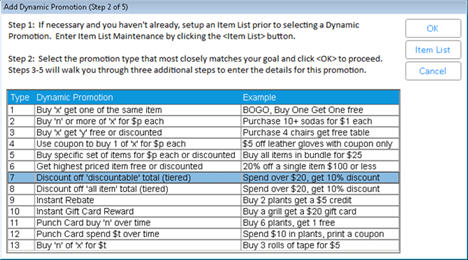
In the Maintain Dynamic Promotions viewer , select Add. Then select Type 7 “Discount off discountable total (tiered),” and click OK.
Note: No Item List is needed for this promotion.
Enter the basic information for the promotion:
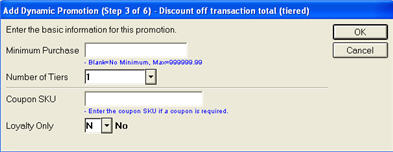
Minimum Purchase – Enter the minimum purchase a customer must make to receive the promotion. Note: The minimum purchase includes discountable items only.
Number of Tiers – You can offer up to 6 different levels, or tiers, of promotions. A typical promotion might offer two tiers: Spend between $50 and $99.99, receive a $10 gift card; Spend over $100 and receive a 15% discount.
Coupon SKU – Coupons are optional in this type of Dynamic Promotion. If you are requiring a coupon, enter the SKU here. If you enter a coupon SKU, the system will not give the free or discounted price unless the coupon has been scanned.
Loyalty Only – Choose Yes to limit the Dynamic Promotion to Loyalty Customers. Selecting No makes the promotion available to all customers.
Define the Tiered Discounts.
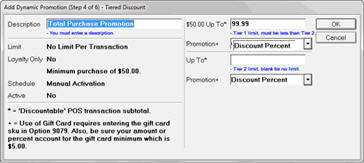
Description – This appears in the Maintain Dynamic Promotions Viewer; customers will not see this name. Use the default name, or enter a new description.
$(Minimum) Up To – Set the top end of the first tier.
Promotion – Choose Discount Amount or Discount Percent.
Complete the Tiered Discounts.
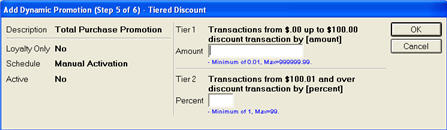
Amount/Percent – Enter the Amount or Percent off that is being offered at each tier.
Activate the Dynamic Promotion by scheduling it with the Promotion Price Report (RUP) or manually activating it. Click OK to complete the Dynamic Promotion.
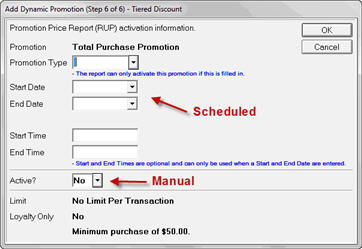
To schedule the activation/deactivation of a promotion using the Update Promotion Price Report (RUP), you must:
Enter the Promotion Type
Enter a Start Date and/or End Date
and/or
Enter a Start Time and/or End Time
To manually activate the Dynamic Promotion, select Yes for Active?.
Note: You do not have to schedule or activate the promotion immediately. You can click OK without entering any information on this screen and the promotion is added to the Maintain Dynamic Promotions Viewer. Later, use the Schedule icon in the Maintain Dynamic Promotions Viewer to schedule the activation through the Update Promotion Price Report (RUP) or to manually activate/deactivate the promotion.

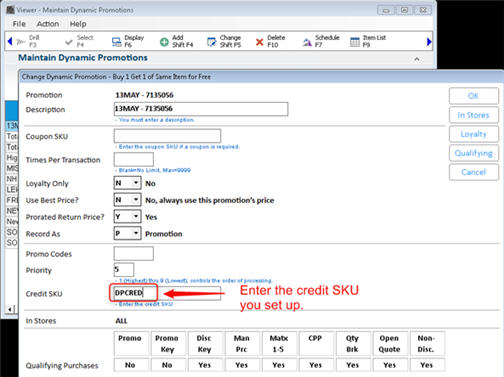
If your state requires tax to be collected on the regular price (rather than on the discounted price) when a promotion is sponsored by the manufacturer or supplier, set up a credit SKU to use with this DP. Then, after adding the DP, click Change, and in the Credit SKU field, enter the Credit SKU so that tax will be calculated based on the pre-discount amount.