Customizing New Record in Inventory
Use the New Record screen in Inventory Maintenance to create a customized loading screen for adding and changing inventory items. The fields you select will display in the New Record screen, in addition to a set of basic item fields (SKU, Department, Description, etc.) that display automatically. The fields you select can include standard Eagle fields as well as Compass fields. The Compass fields can be Epicor-defined fields (e.g. unique Inventory Planner or Loyalty Manager fields) or user-defined fields.
- Display the Inventory Maintenance window.
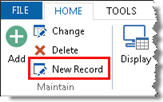
- Click New Record.
- From the main New Record screen:
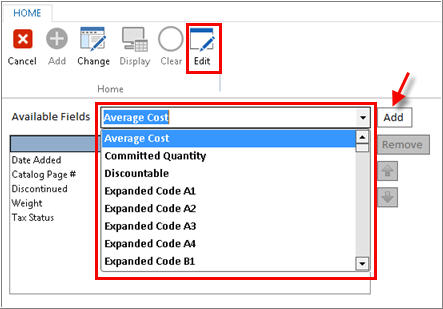
- Click Edit.
- Using the Available Fields drop-down list, select a field you want to appear in the New Record screen. Then click Add. Repeat this process to add all the fields you want.
- The fields you selected are added to the list. Click Change to save your changes.
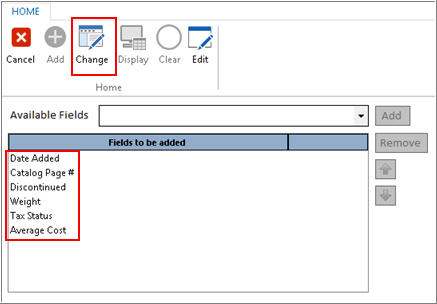
- This brings you back to the main screen of New Record. When you exit out of Eagle and back in, the fields you added display in the New Record screen.
- Now that you have set up the New Record screen, any time you need to load new inventory items in the New Record screen, the fields you selected automatically display, in addition to the basic inventory fields (SKU, Department, Description, etc.).