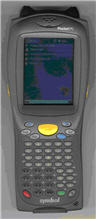
This topic explains how to use the terminal keys on a Symbol MC 8146 mobile device that is running Eagle Mobile.
If more than one key is listed for a given function, press the first key, release the key, and then press the second key. For example, press <SHIFT>, then press <0> to print a label. Do not press both keys at the same time.
|
Desired Action |
Key |
|
Clear Field |
<Clear> in field with data |
|
Clear Screen |
<Clear> in blank field. <Clear><Clear> clears screen. |
|
Exit the application |
<Shift><7> |
|
Print Label |
<Shift><0> |
|
Find / Go / Lookup |
<Enter> if lookup field(s) changed. |
|
Change / Post / Update |
<Enter> if lookup field(s) not changed and data changed. |
|
Select |
<Enter> if lookup field(s) not changed and in list. |
|
Alternate Post / Replace |
<Shift><Enter> |
|
Next (line/item) |
<Func><4> |
|
Previous (line/item) |
<Func><5> |
|
Key List (Display only) |
<Shift><8> |
|
Tab (Next Field) |
<down arrow> = <Func><C> |
|
Back Tab (Previous Field) |
<up arrow> = <Func><H> |
|
Standard Windows Keys |
|
|
Left Menu |
F1 (<FUNC><1> on Symbol devices) |
|
Right Menu |
F2 (<FUNC><2> on Symbol devices) |
|
Movement within fields |
Left and Right arrow keys |
|
Scrolling up in menus/drop-downs |
Up Arrow |
|
Scrolling down in menus/drop-downs |
Down Arrow |
|
Exit Menus |
<ESC> or <Clear> |