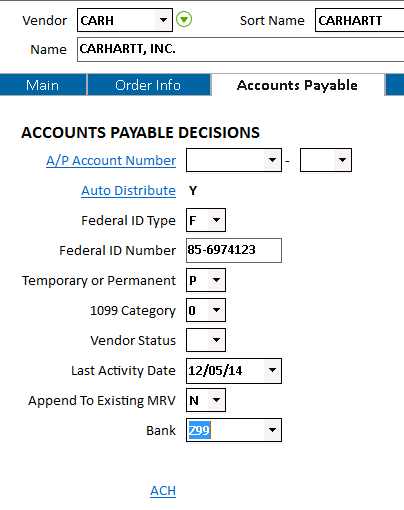
ACON - The Federal ID number is required here, to be used in the ACH file that is sent to the bank.
ACON – set the ‘Multiple Codes’ flag to ‘Yes’ to allow the use of multiple Bank Codes.
A/P Option 9011 – “Execute separate check runs for bank codes assigned” must be set to ‘Yes’. This tells the check-payment process to look at the Bank Code set up in MVR when processing checks.MSY Option 5776 "iNet Connect on System" must be set to 'Yes'. This option is required for emailing the Statements to the Vendor.
Security: MSE # 1095 – Ability to access and change the vendor’s ACH information: when this is set to ‘Yes’, the Accounts Payable tab of Vendor Maintenance (MVR) will have a link to ‘ACH’, which, when clicked, will allow the user to add or change the vendor’s ACH information.Requires MSY Option 9015 "Use EFT Network to Transfer Vendor Payments through ACH" set to 'Yes'.
Epicor Representative can enable this option once the customer has received the credentials from EFT Network.
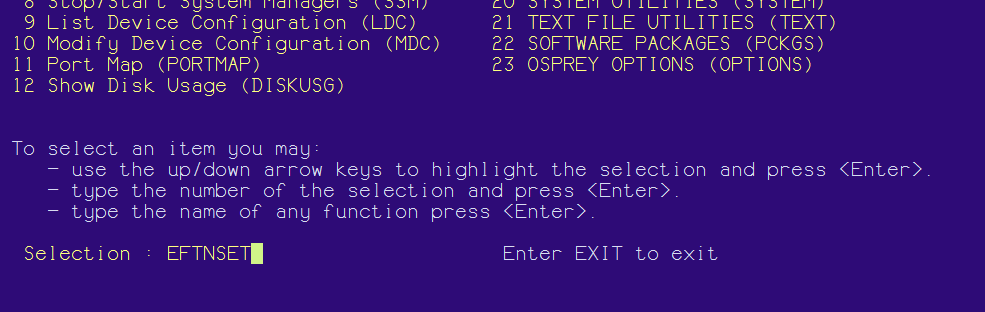
To set up the EFT Network interface perform the following steps:
Open Secure Access in the Osprey Menu and enter the following credentials:
Login ID = OSPREY
Password = AVATAR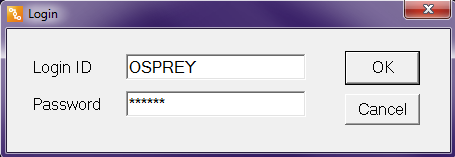

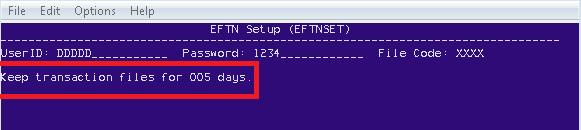
A value of 000 indicates that no files are to be deleted. The minimum value is 1 day but it is recommended to set this option to at least 30 days.
 Setting the option to at
least 30 days allows you to retrieve the file in case of any issue in
transmission occurs.
Setting the option to at
least 30 days allows you to retrieve the file in case of any issue in
transmission occurs.
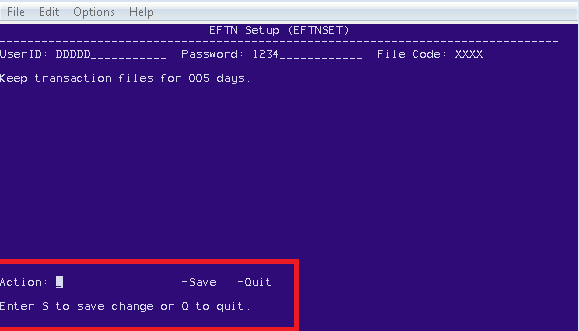
Tab to the action choice and type <S> to save the EFTN Setup. If you do not want to save what has been entered, type <Q> to quit the Setup.
Once you set up EFTNSET, an invoice for any vendor setup as ACH can be transmitted via EFT Network automatically.
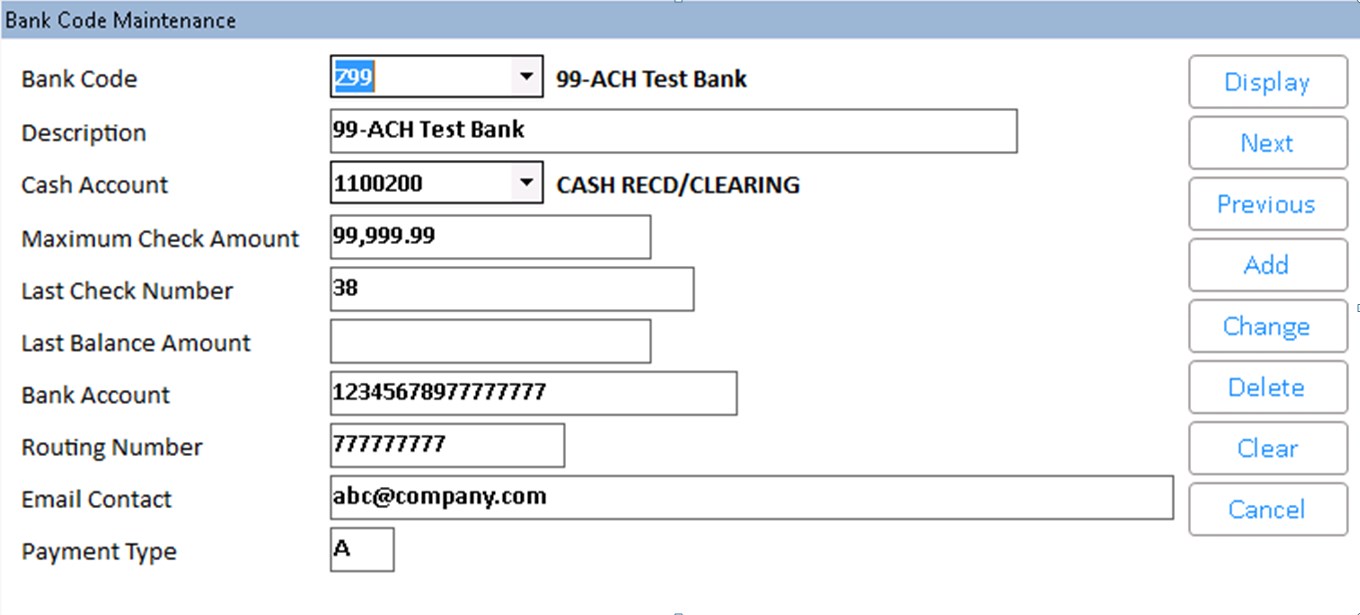
The Email Contact is the email address for your business. It will be used as the ‘From’ email address when the Eagle sends the vendor an email notifying them of the electronic payment.
The Payment Type A designates that this bank code is for ACH payments only. When using a bank code with Payment Type A, checks will not print, and an ACH file will be created when payments are posted.
The ACH Bank Code cannot
be the default bank code entered in ACON.
ACH
payments will not be processed unless you have a Federal ID Number entered
for the Vendor on the Accounts Payable tab.
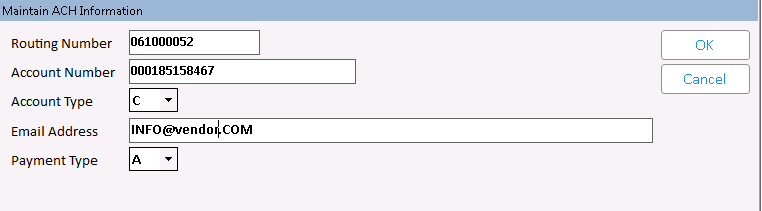
Routing number – 9-digit Routing number for the Vendor’s bank that will receive the ACH payment.
Account Number – Vendor’s bank account number to send ACH payments to – alpha-numeric 17 digits.
Account Type – Determines if the account is a checking or savings account. Valid values are S (savings) or C (checking). Default is C.
Email address – email address to send the notification of payment.
Payment Type – Valid values are A (ACH) or C (Check). The default is C. ‘C’ can be used in a situation where we need to print a live check for a normally-ACH vendor.
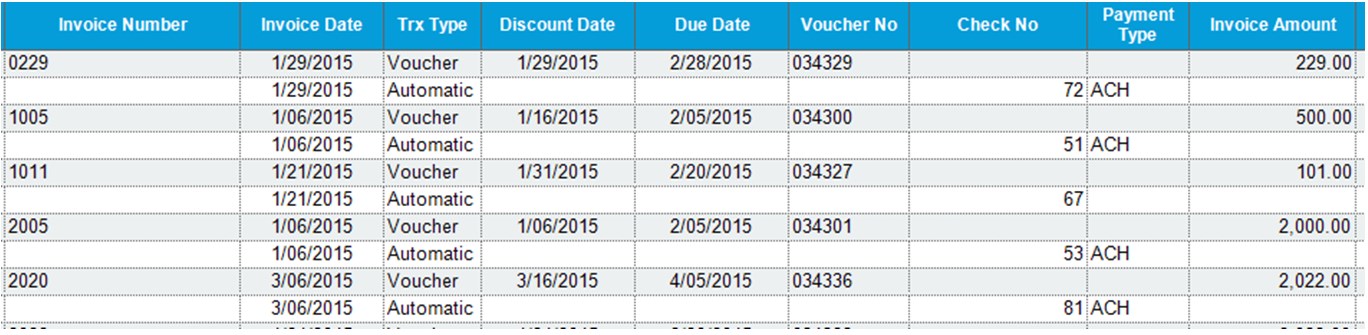
Post invoices normally through New A/P Transactions (ATMU) via RATJ.
Select required invoices in Selecting, Paying and Adjusting Invoices (APMU):
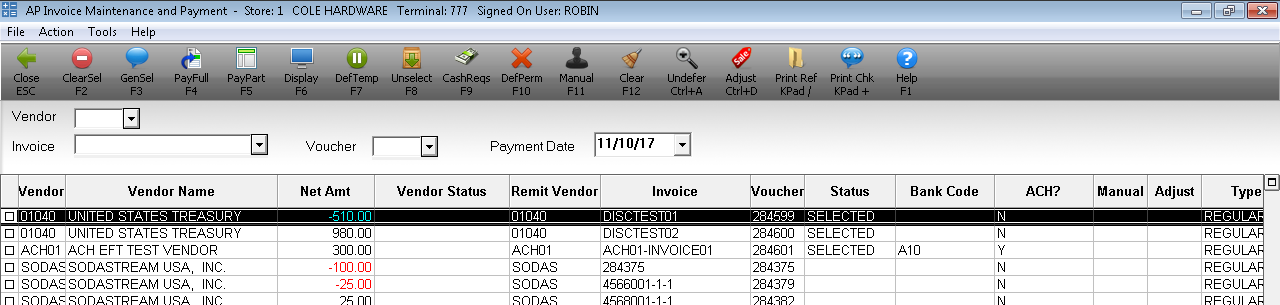
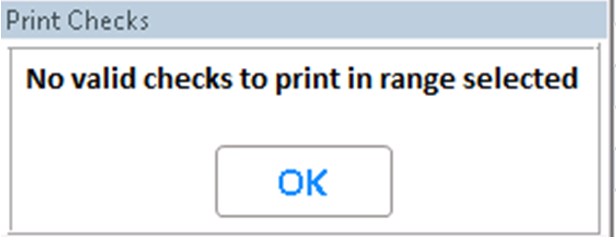
Print checks through APCM with the ACH bank code.
Post Checks and Print Check Register with APPC.
APPC is the vehicle that will transmit the electronic payments via EFT.
If the EFTN batch is successful, the following message displays in the File Transfer Audit Log in SHOWLOG:

If the EFTN batch is unsuccessful, the explanatory message displays in the File Transfer Error Log in SHOWLOG .