In Release 29.1, Eagle now supports importing the new Andersen Windows Intelligent Quote Plus Tool. You can maintain both product and accessory types for your Andersen catalog. By default, the system uses the same types and SKUs in options 5200 through 5207. You should review these options before starting to make changes.
Note: Files imported using the PC version tool will continue to be supported.
The Maintain Product Types or Maintain Accessory Types menu options provide quick access to these types for editing or associating Eagle SKUs to post. Managing the product types and accessory types keeps your system types up to date and accurate.
Note: Andersen Quick Add is still supported with the IQ Plus XML files and supports posting with the Andersen part number if the unit being posted has an Andersen part number in the xml file.
Use the following processes to add, change, or delete product types.
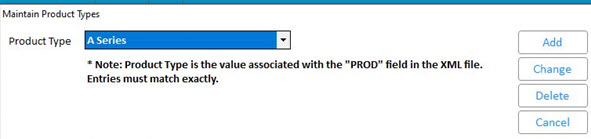
Note: Product Types must be an exact match to the value associated with "PROD" field in the XML file EX. for an A Series window unit, the Prod value in the XML = A Series, so the new product type should read A Series , then have an associated Eagle IMU SKU.
Select the Product Type you want and click Add.
Use the Product Type and SKU fields to define the type you want to add.

Note: The SKU must already be in Item Maintenance. The system validates before allowing you to proceed.
Click OK to complete the add or Cancel to exit without saving.
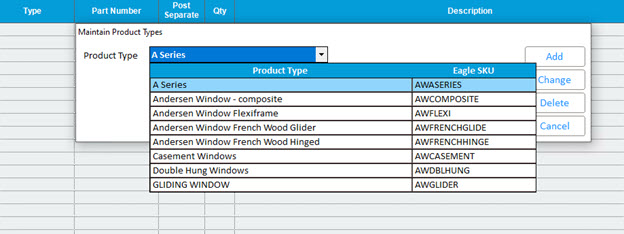
Click Change.
Adjust the product type or SKU, as needed, and click OK to save your changes.

The system prompts you to confirm your deletion:
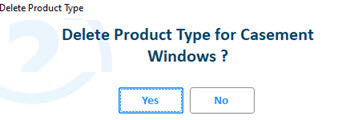
Click Yes to delete or No exit the prompt and keep that product type.
Accessory Type values are associated with the Accessory Type field in Intelligent Quote and the Product Code field in IQ+. The user can set the default option to post the accessories as separate line items or as a descriptor in the window unit post. Use the following processes to add, change, or delete accessory types.
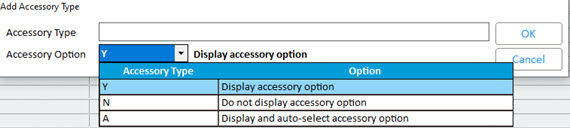
Click OK to complete the add or Cancel to exit without saving.
From the iQ menu, select ? to open the POS Andersen Import Viewer.
From the Miscellaneous Menu, select Maintain Accessory Types.
Use the Accessory Type drop-down menu to select the product you want to adjust.
Click Change.
Adjust the description or option fields, as needed, and click OK to save your changes.
From the iQ menu, select ? to open the POS Andersen Import Viewer.