Use the following procedure to sell and automatically activate In-Store Gift Cards in POS. Before you begin activating gift cards, you must have already completed all setup, including setting the option "Force Gift/Cash Card activation" (ID#5980) to Yes in Options Configuration. If you set this option to No, do not use this procedure; instead, see the topic "Selling In-Store Gift Cards with Manual Activation."
If you're issuing a gift card as a merchandise credit return, see the first "Tip" at the end of this topic.
In POS, ring up the In-Store Gift Card SKU for each gift card being purchased (you can sell up to 996 gift cards on a transaction), total the sale, and collect the money for the gift card(s).
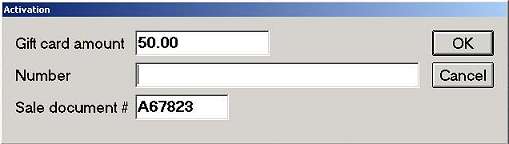
In the Activate Gift Card dialog that displays automatically, enter the gift card amount. Then tab to the Number field, and swipe the gift card to enter the card number.
Note: The card must be swiped in order to enter the card number. Manual entry of the card number is not allowed.
The Sale Document # field is filled in automatically.
If you sold more than one gift card, the Activate Gift Card dialog displays again automatically. Repeat step 2 to activate the additional gift card(s). If you use Eagle Alerts, the system will generate an alert whenever a gift card activation is attempted.
If you need to void the activation for any reason, click here for the procedure.
Tips:
If you are issuing a Merchandise Card to a customer returning merchandise, here's an example of how to process the transaction.
You can abort a gift card activation if you have security bit 758 - "(MO)Gift/Cash Card - ability to cancel out of gift card activation." If you do not have this bit, a manager's override is required to cancel out of the activation process.