(Document Imaging and signature capture device(s) only)
The Signature Capture function is invoked for both sale and credit transactions whenever a customer pays by in-store charge. The same is true in Epicor Eagle™ Offline POS for Windows. The steps below describe what happens during an in-house charge transaction.
Note: you can also use Signature Capture on bank card transactions. Click here for the procedure.
The Clerk starts a sale or credit transaction to the appropriate account, and posts items, as usual.
The clerk presses <Total> to total the transaction, and then presses <Enter> to charge the amount to the customer's account.
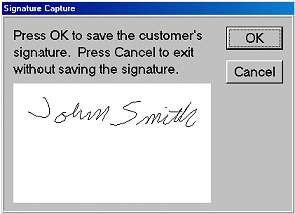
If POS determines the amount can be charged to the customer's account, the signature capture device prompts the customer to sign, and then press OK. If the customer makes a mistake and wants to sign again, he/she can press <Clear> to start over. Once the customer has submitted their signature by pressing OK, the signature window disappears, and the electronic copy of their signature displays in POS.
Click OK to save the signature. Note: if you press OK before the electronic signature has been captured, you'll receive a warning message.
If you don't want to save the signature (i.e. because the customer refuses to sign on the electronic device, or because you're ringing up an order placed by phone), click Cancel. The Exit Signature Capture box displays.
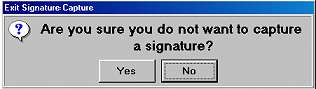
Select Yes and press ENTER. When the Signature Reason box displays, select a reason and press OK. The reason you select is saved in the Document Imaging archive.
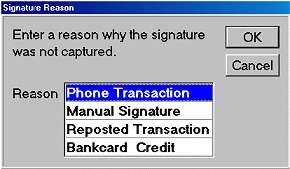
Important: If the customer refused to sign on the signature capture device, make sure he/she "manually" signs for his/her purchase by signing the invoice that prints. If the account is set up to print a receipt rather than an invoice, a second receipt automatically prints, so the customer can sign it in lieu of an electronic signature.
Complete the transaction as you normally would.
Depending on how POS or the customer's account is configured, a receipt and/or invoice will print. If the customer signed for his/her purchase on the signature capture device, the receipt printer prints a single receipt rather than the traditional two-part charge receipt. The copy with the electronic signature is automatically stored in the Document Imaging archive. If an invoice prints, the customer's signature will print on it if you have a laser printer and if the option "Print Electronic Signature on the POS Invoice Printer" is set to Y.
Note: The Signature Capture feature is not available for the ISC operating system.