Creating ItemPart Lists in the Promotions File
From the Misc Menu of Modify Item Promotion (MIP), you can create an itempart list for the items currently displayed in the grid. You can then use that itempart list to dictate the items to include in a particular process or report.
-
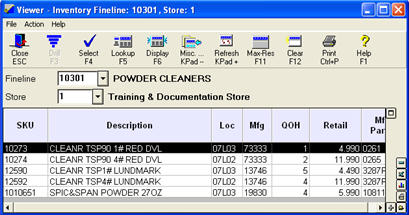
Click Viewer (Shift F9), and use the appropriate lookup method to locate the itemsparts you want to add to the itempart list. Note that if your lookup includes itemsparts you don't want to include in the ItemPart List, you can select only the relevant itemsparts in step 4 below.
-
Do one of the following:
-
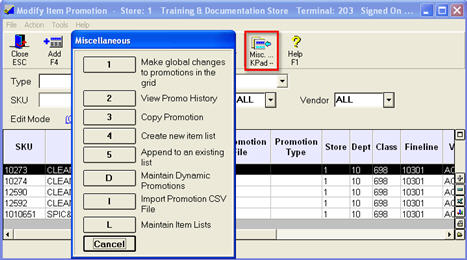
If you want to add everything displayed in the Inventory Viewer to your ItemPart List, click Misc from the MIP window, and select Create New ItemPart List.
-
If you want to add only certain items displayed in the Inventory Viewer to your itempart list, use check boxes to select only the relevant itemsparts in the grid. Then click Misc from the MIP window, and select Create New ItemPart List.
-
If you want to append the SKUs in the grid to an existing itempart list, click Misc and select Append to an Existing List.
-
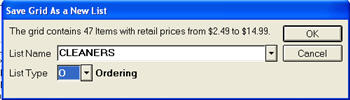
In the dialog that displays, if you are creating a new list, enter a List name (maximum of 32 characters) and select a List TypeList Type r . If you are appending SKUs to an existing list, select the List Name to which you are appending from the drop-down list.
Notice that the dialog reports the total number of itemsparts that will be added/appended from the grid, and the price range of those itemsparts.
-
Click OK.